Guide
An illustrated guide to the current version. Products and prices in screenshots are examples, not real offers. Some launch and subscription settings are still being finalized.
1. Start with your account
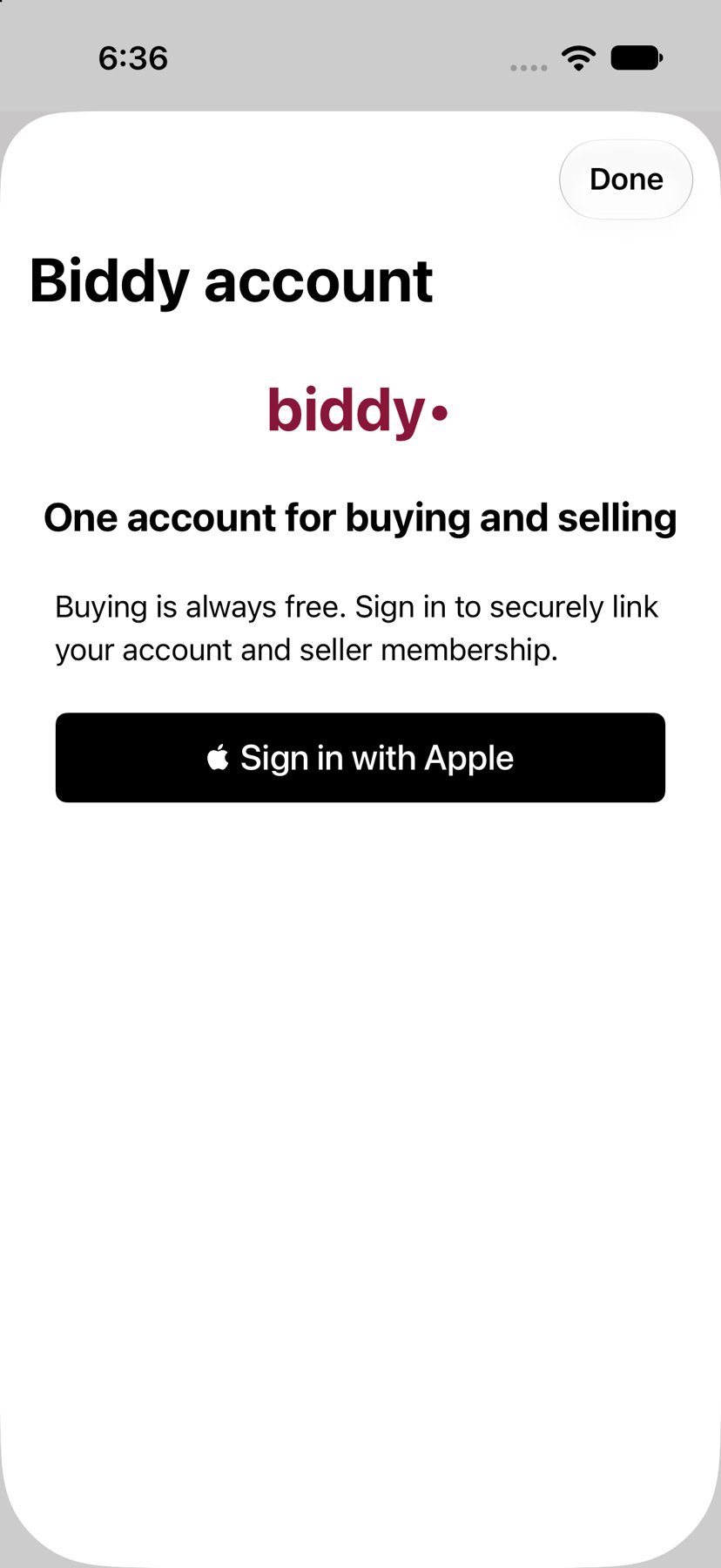
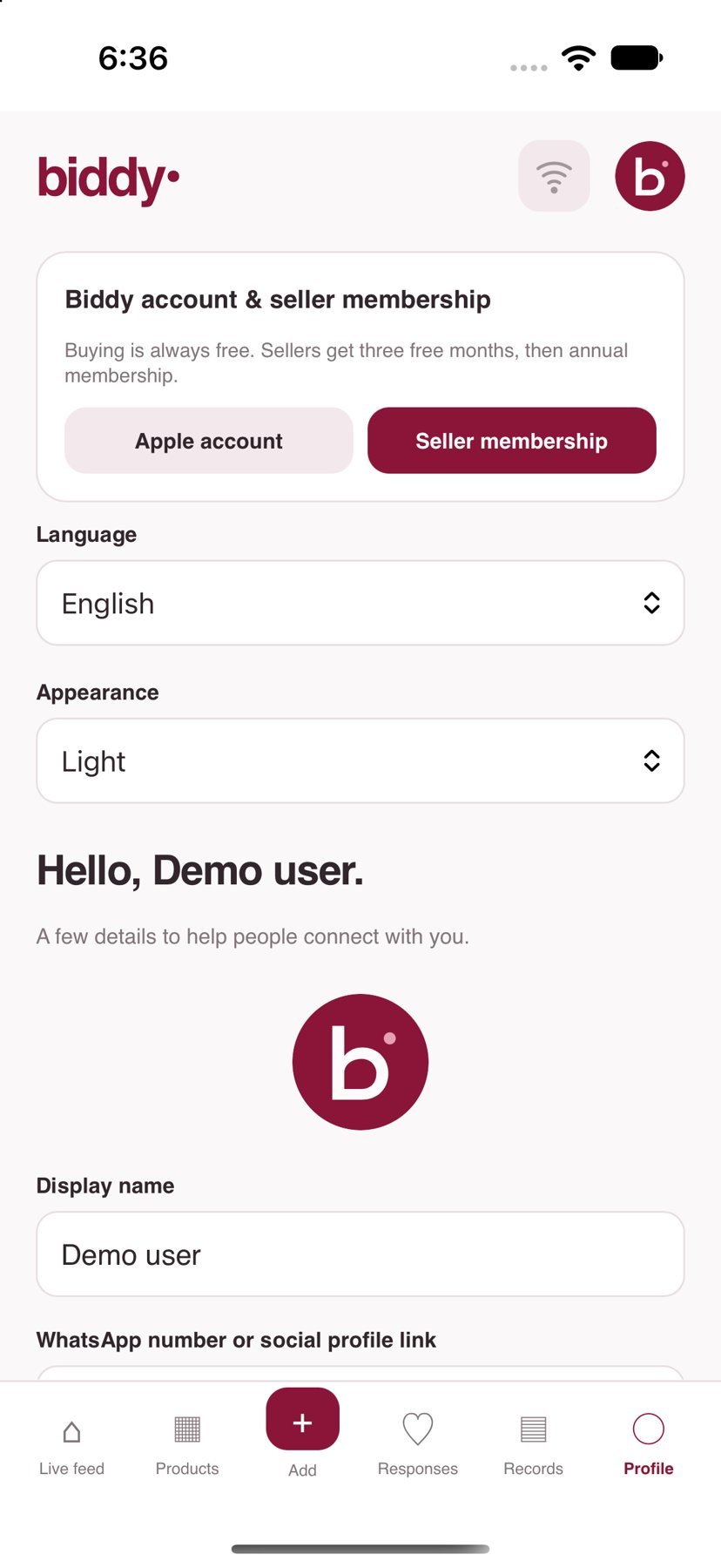
Open Profile and sign in with Apple. You can use Apple’s private relay email. One account supports buying and selling. Apple may ask you to confirm your App Store account when purchasing; this is separate from signing in to Biddy.
You can sign out or delete your account from Account. Deleting a Biddy account does not cancel an Apple subscription; use Manage Subscription to stop renewal if needed.
2. Live offers and categories
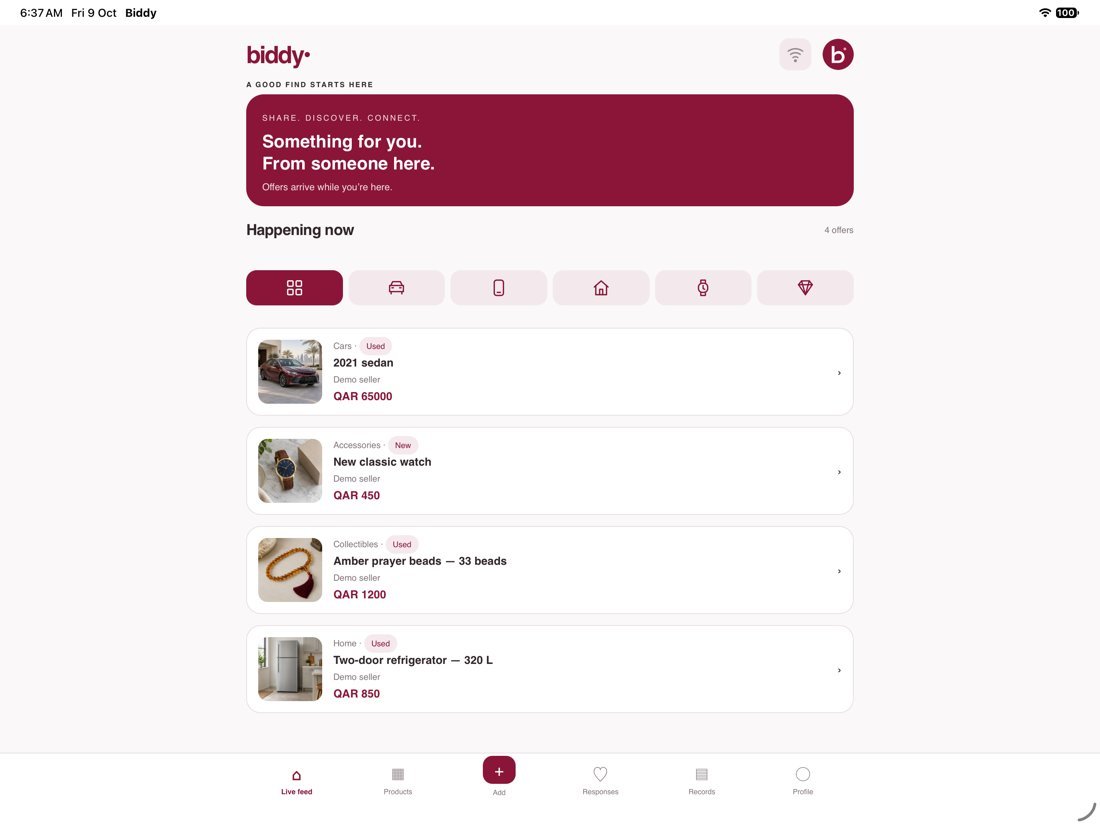
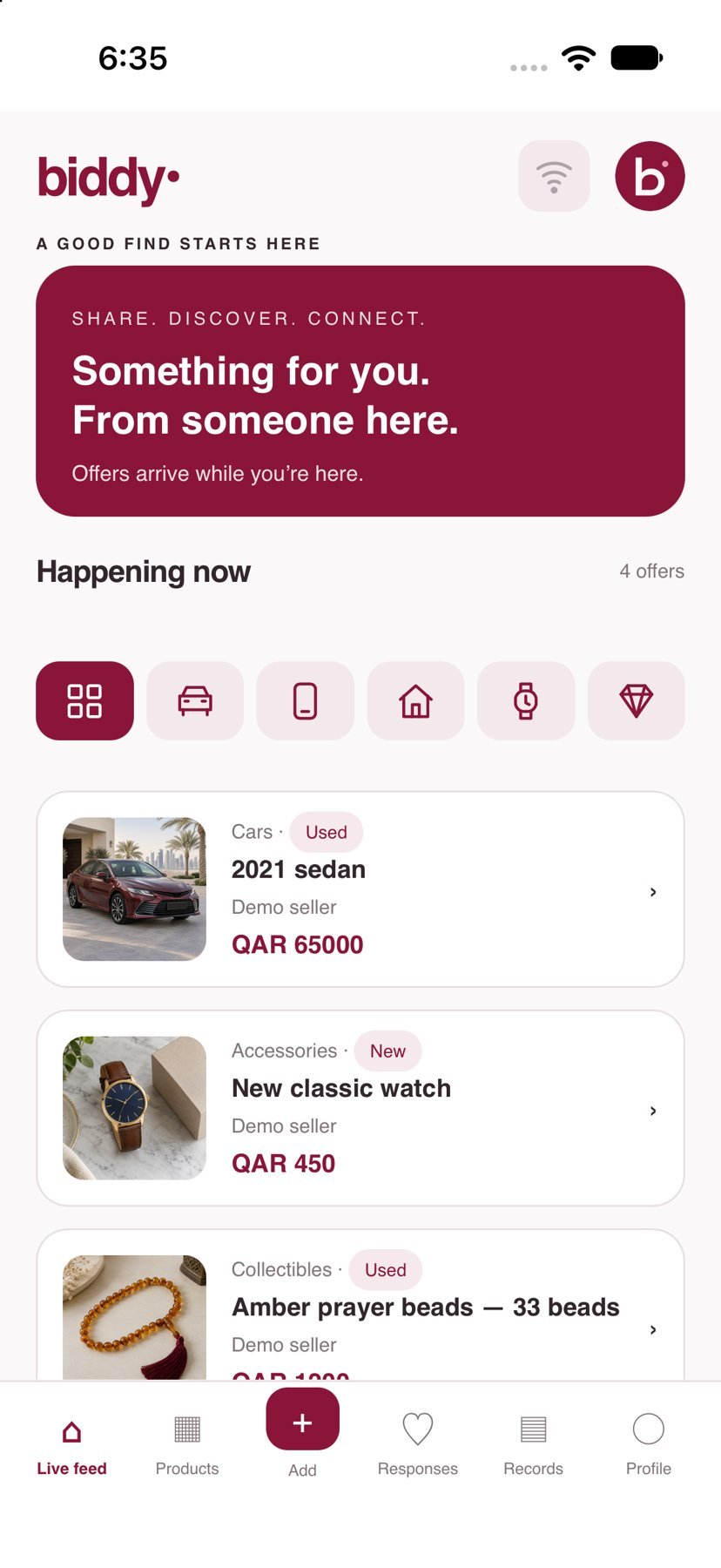
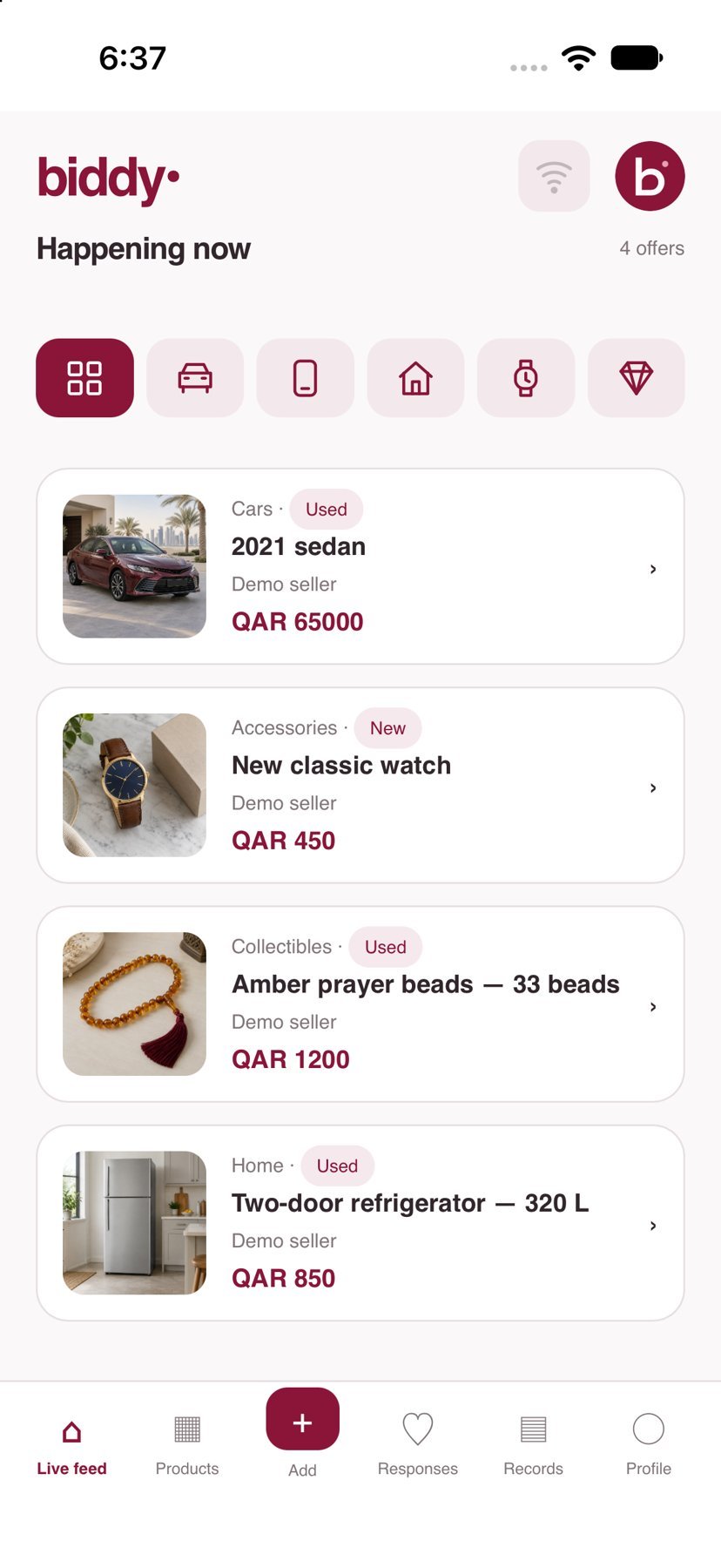
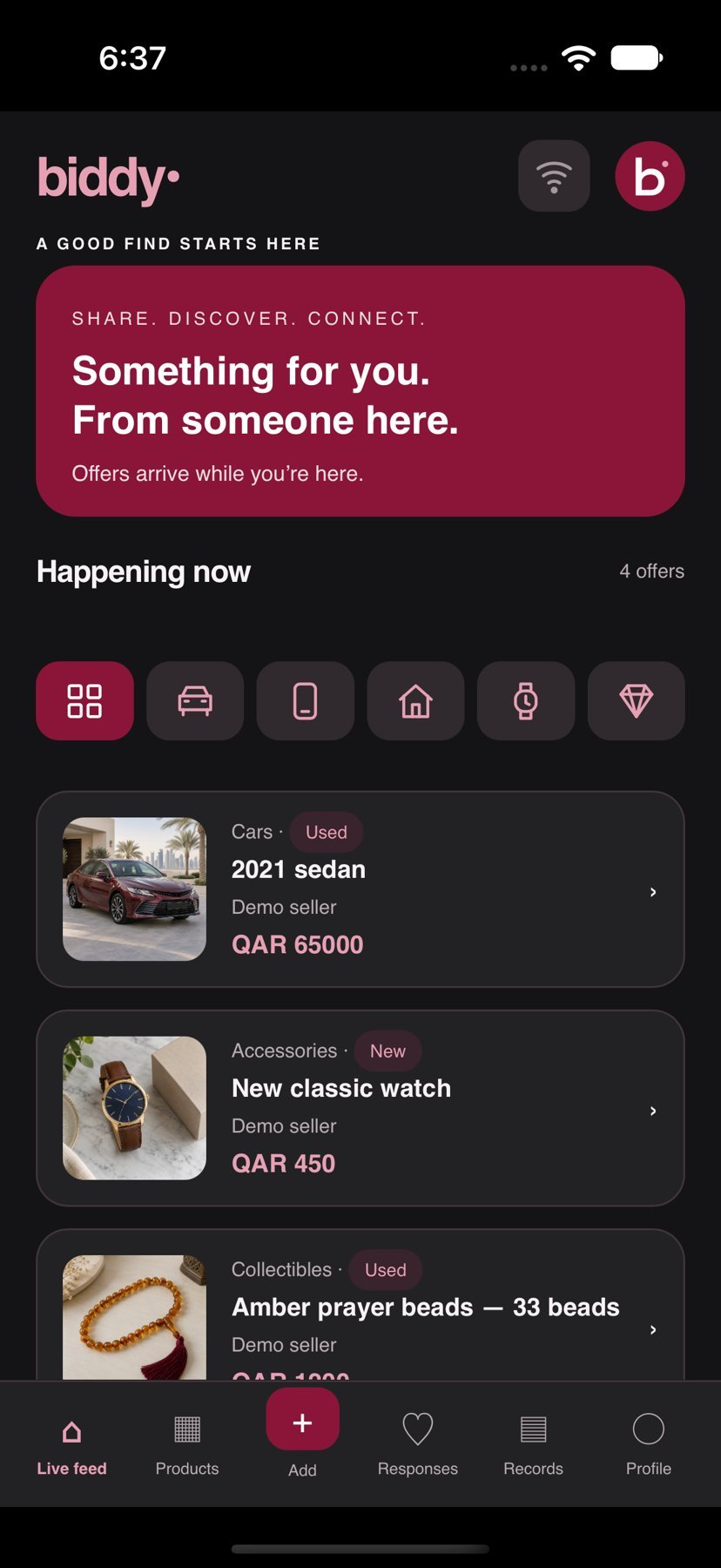
Open Offers and check the connection indicator. Offers arrive while you are connected. Choose All or Cars, Phones, Home, Accessories and Collectibles. Icon labels appear in bubbles when you interact with them. Biddy uses available Wi-Fi or cellular data; enable cellular access in device settings.
3. Product photos and details
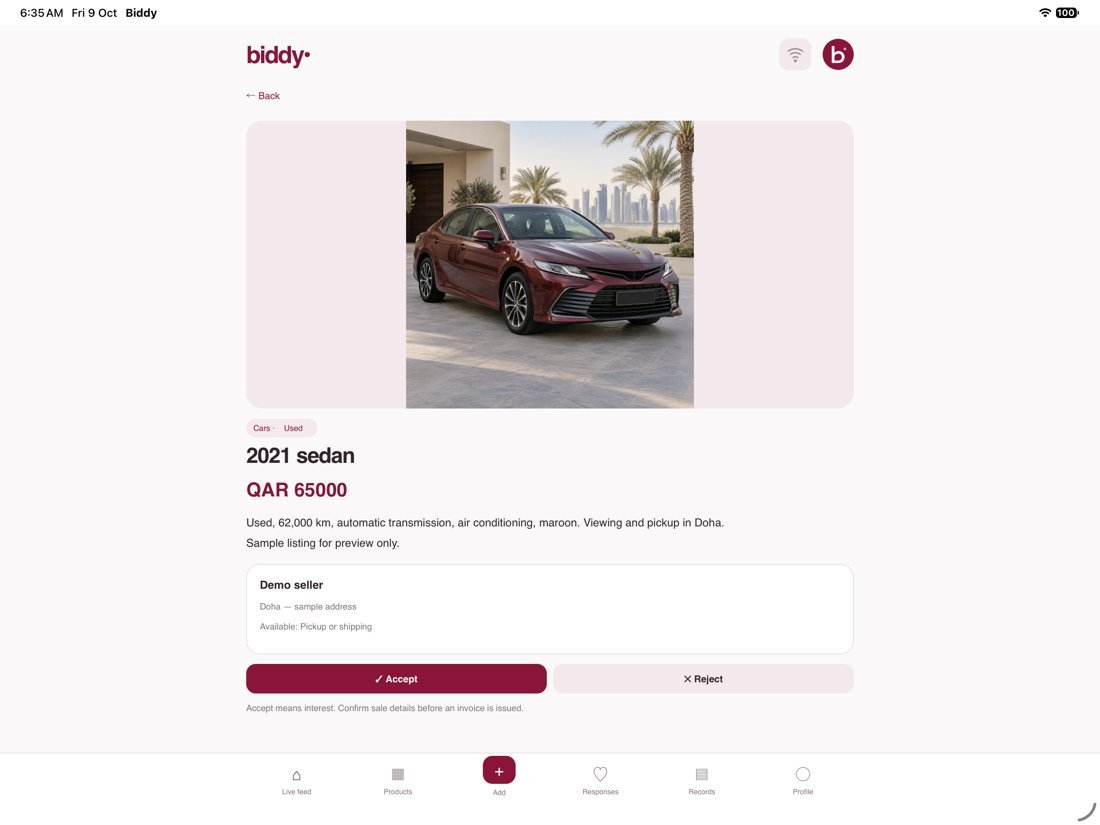
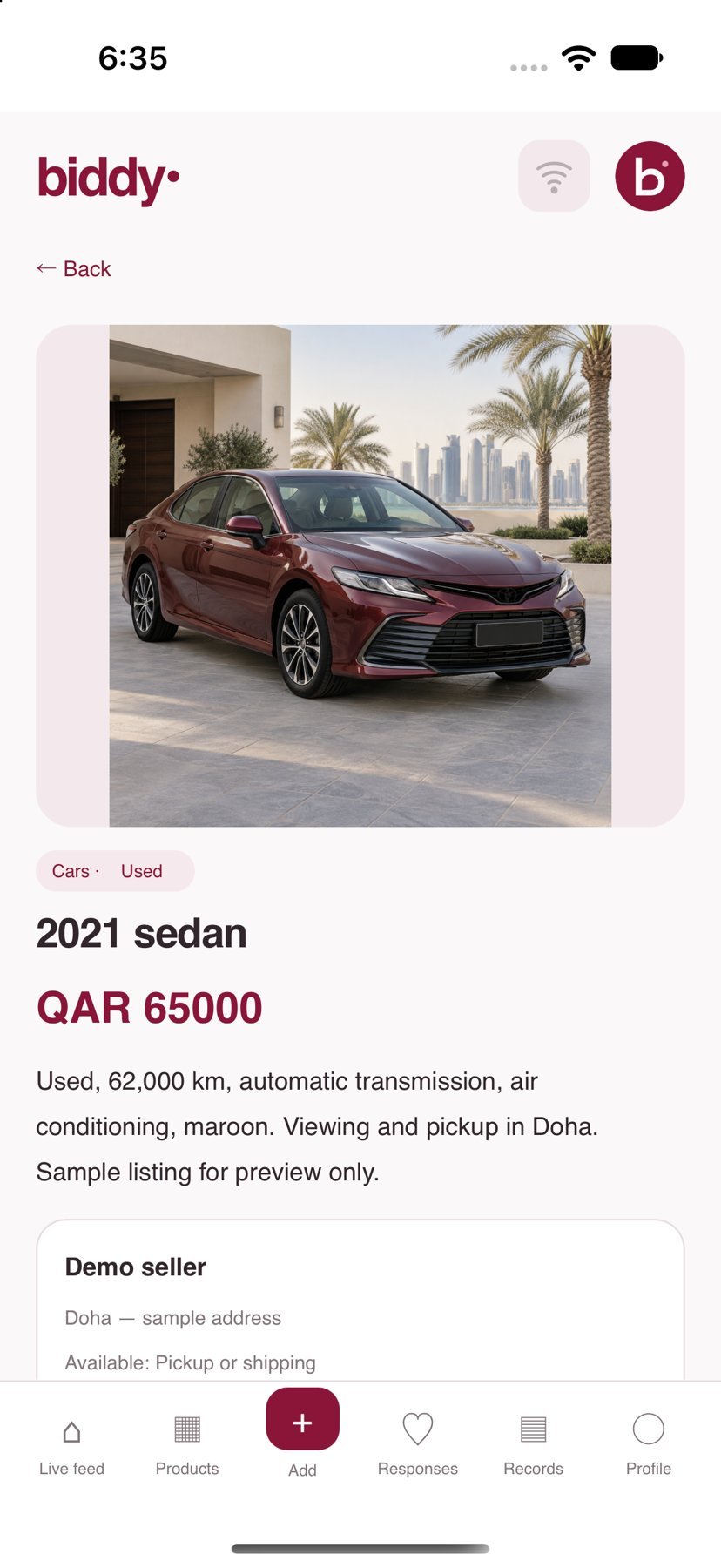
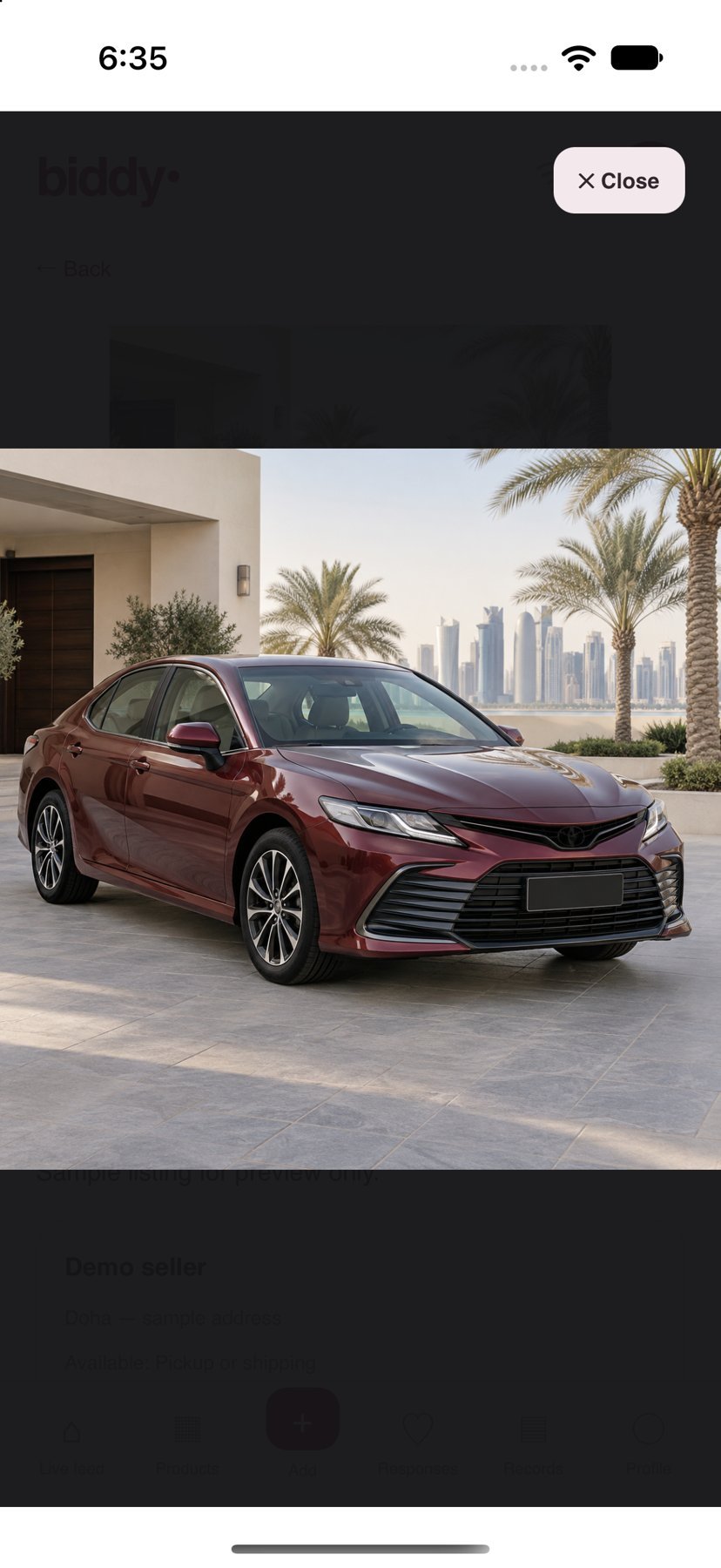
Tap a product card to read its price, description and New/Used condition. Browse the available photos and open a photo for a larger view. Compact feed photos leave room for other products.
4. Interest and WhatsApp contact
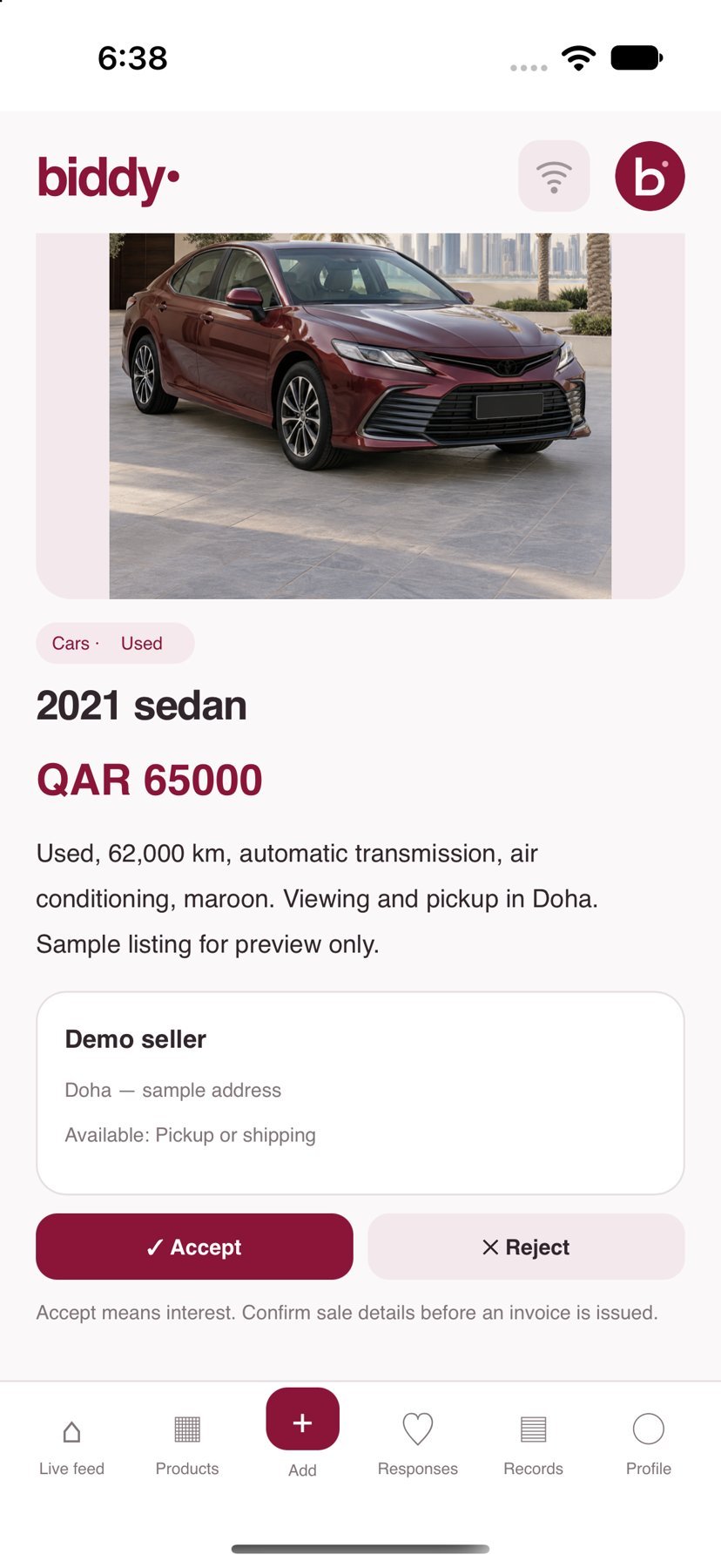
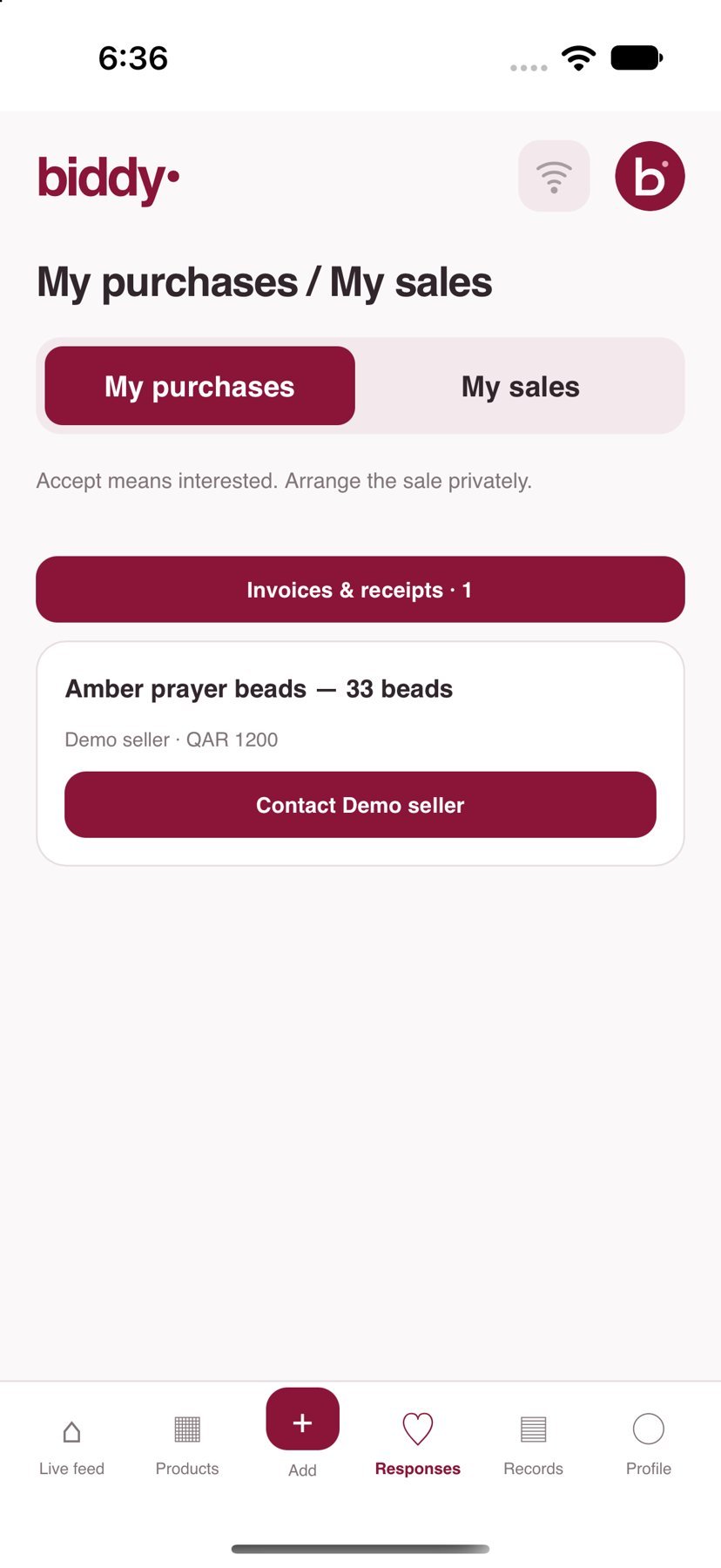
Accept an offer if interested, or reject it. Acceptance only expresses interest. Accepted offers appear in My Purchases. Contact opens WhatsApp with the product information in a prepared message; send it yourself and arrange details with the seller.
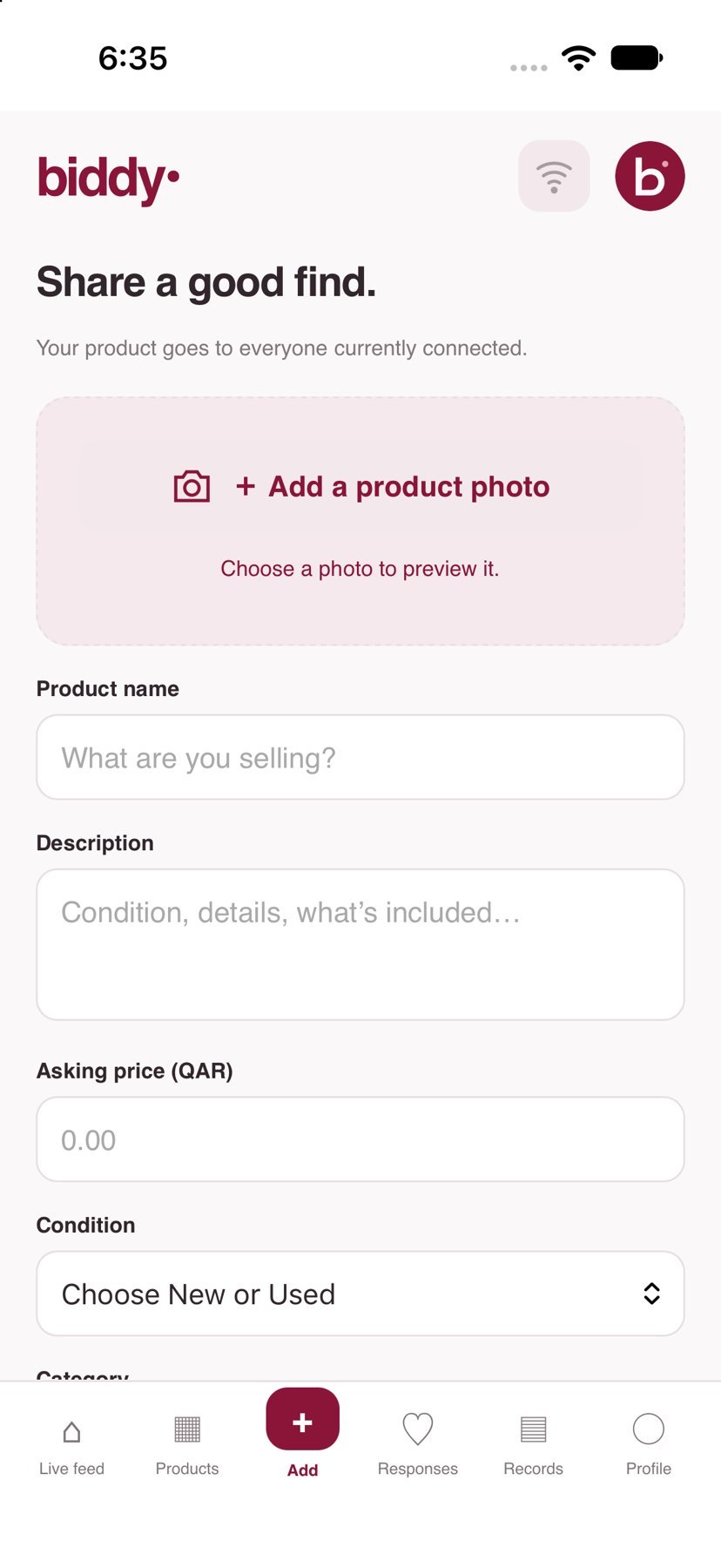
5. Add a product and photos
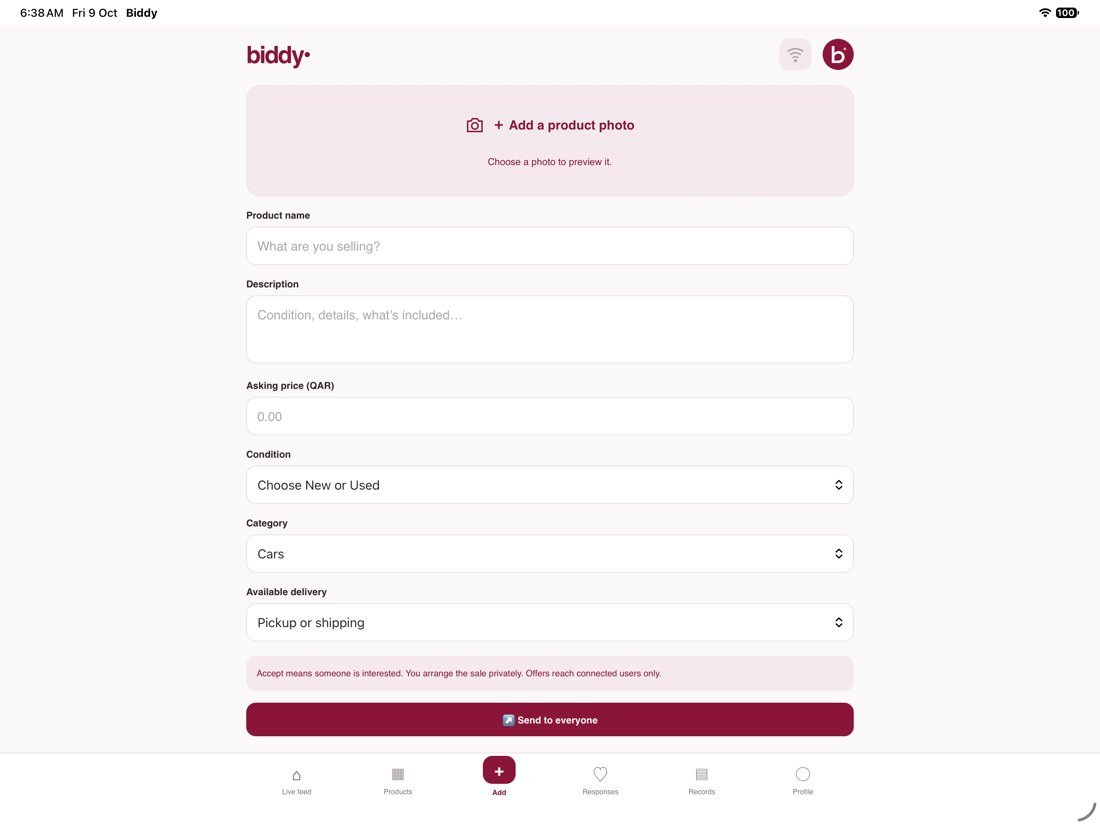
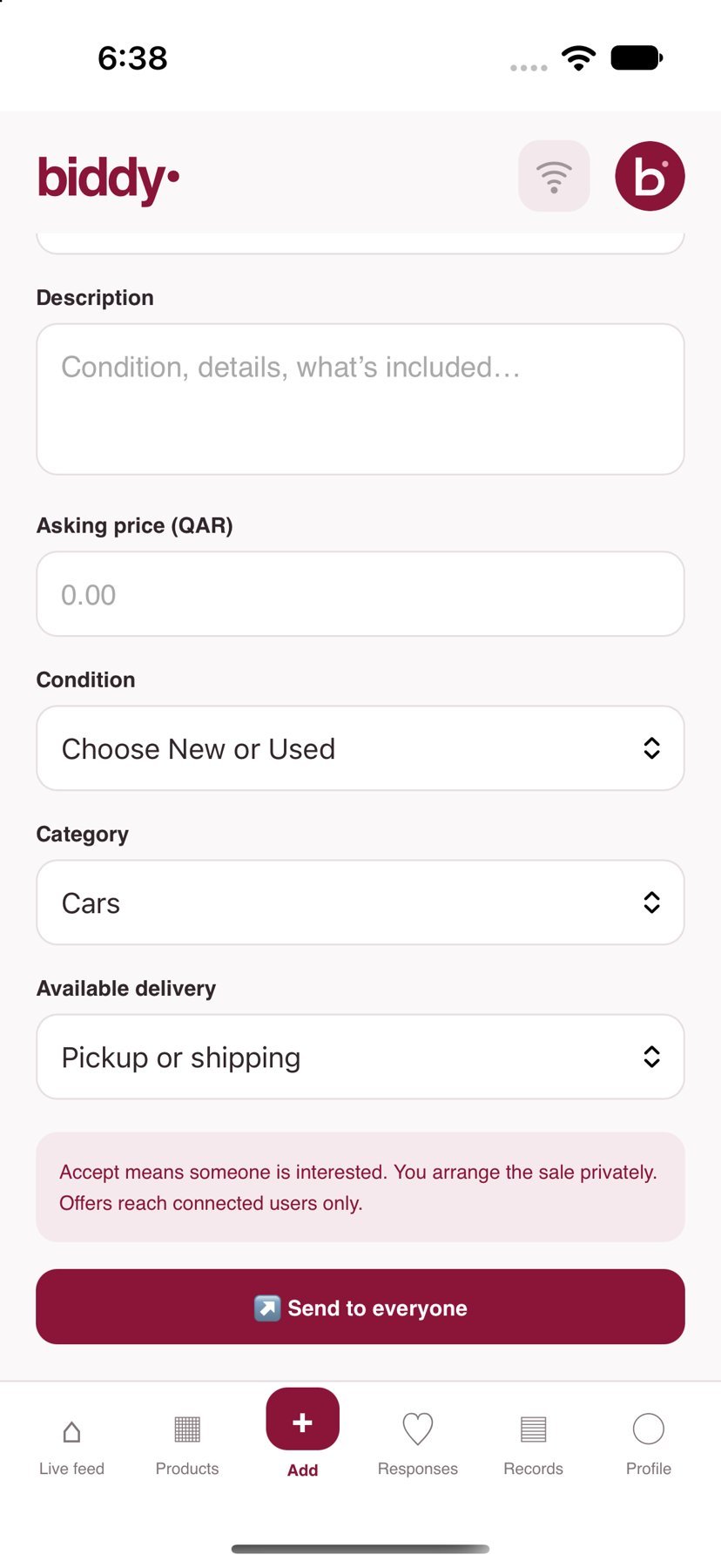
Tap +. Add at least one photo; a product cannot be saved without a photo. You can add up to eight photos. Enter the title, description and price, then choose New/Used, category and collection options. Include important condition details and accessories in the description.
6. My Products and sharing offers
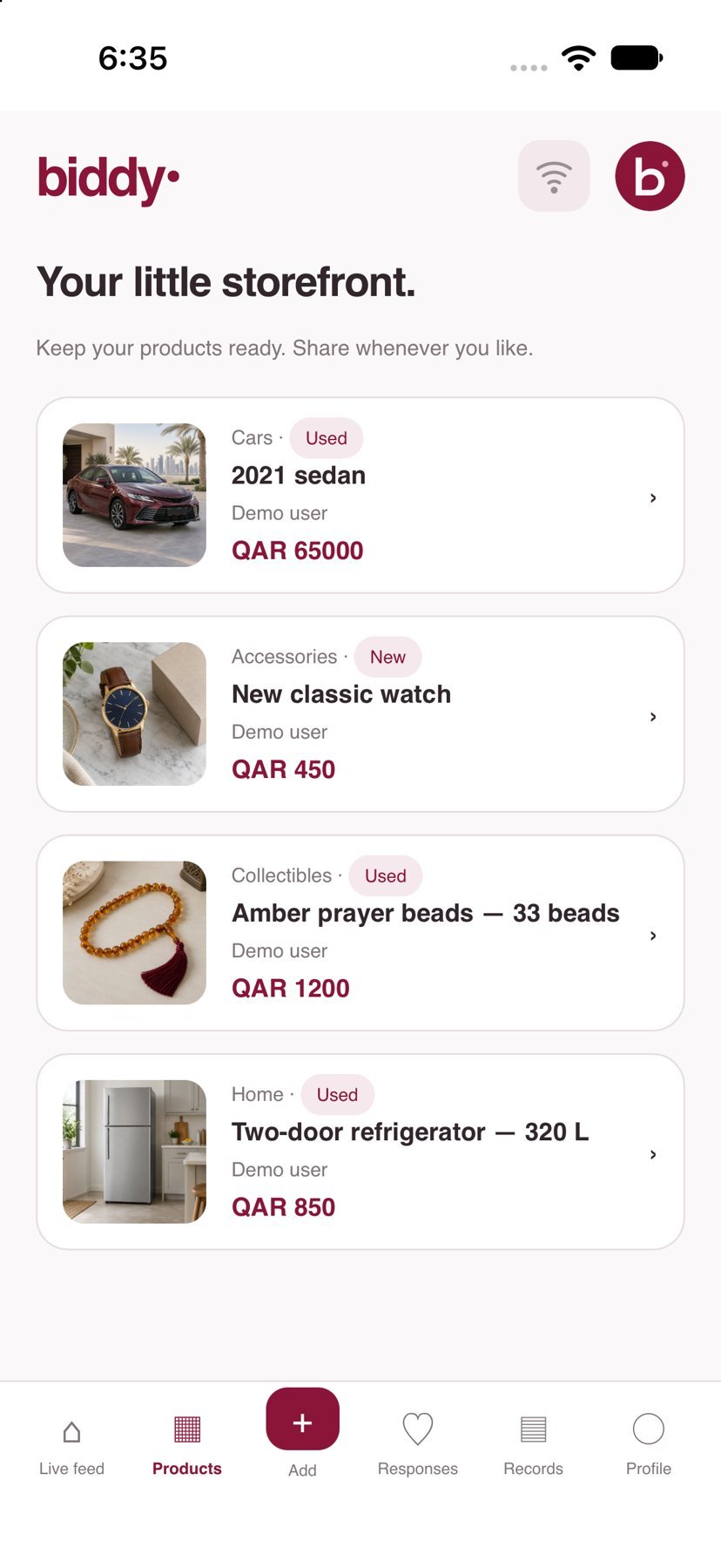
In My Products, review the items you added. Sharing sends an offer to connected users without selecting individual buyers. If disconnected, restore the connection before trying again.
7. My Sales and confirming a sale
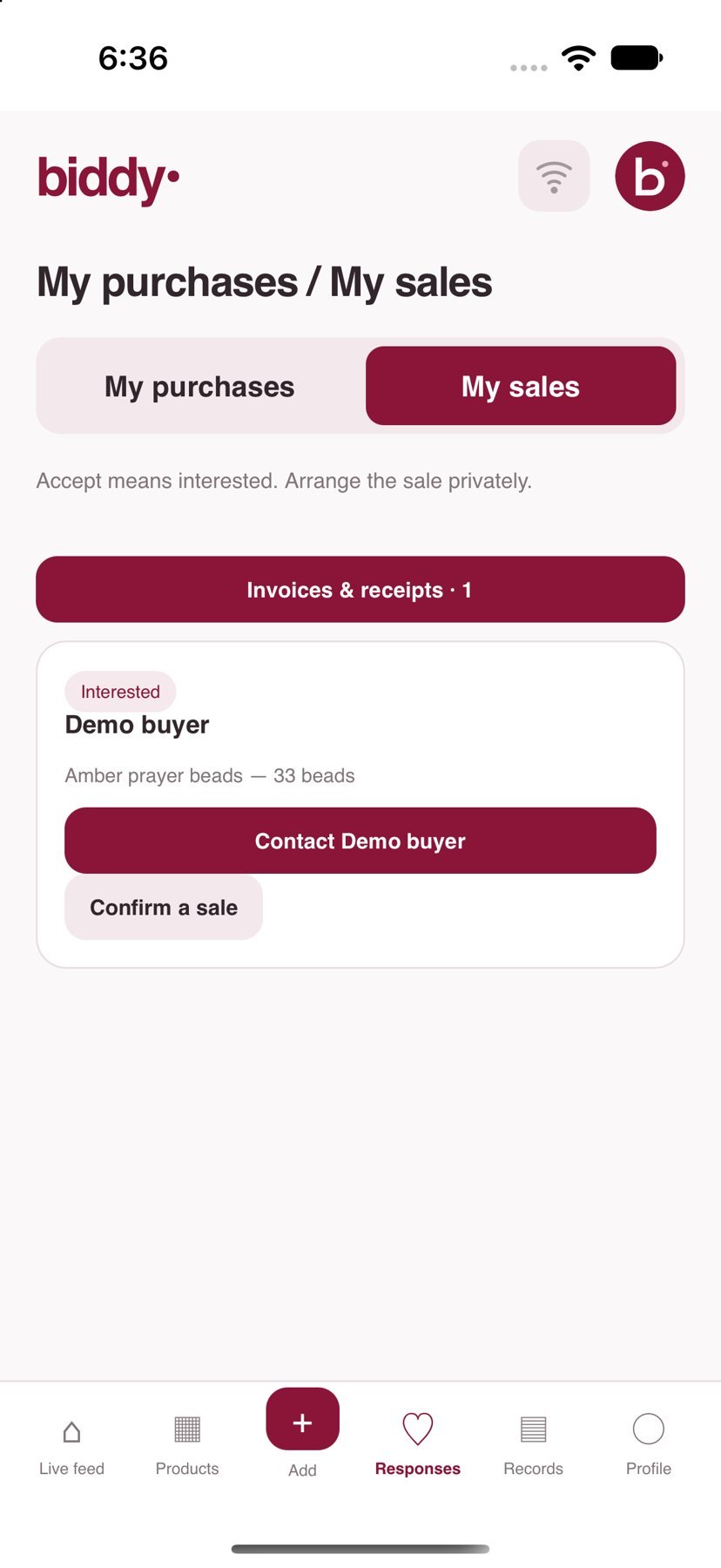
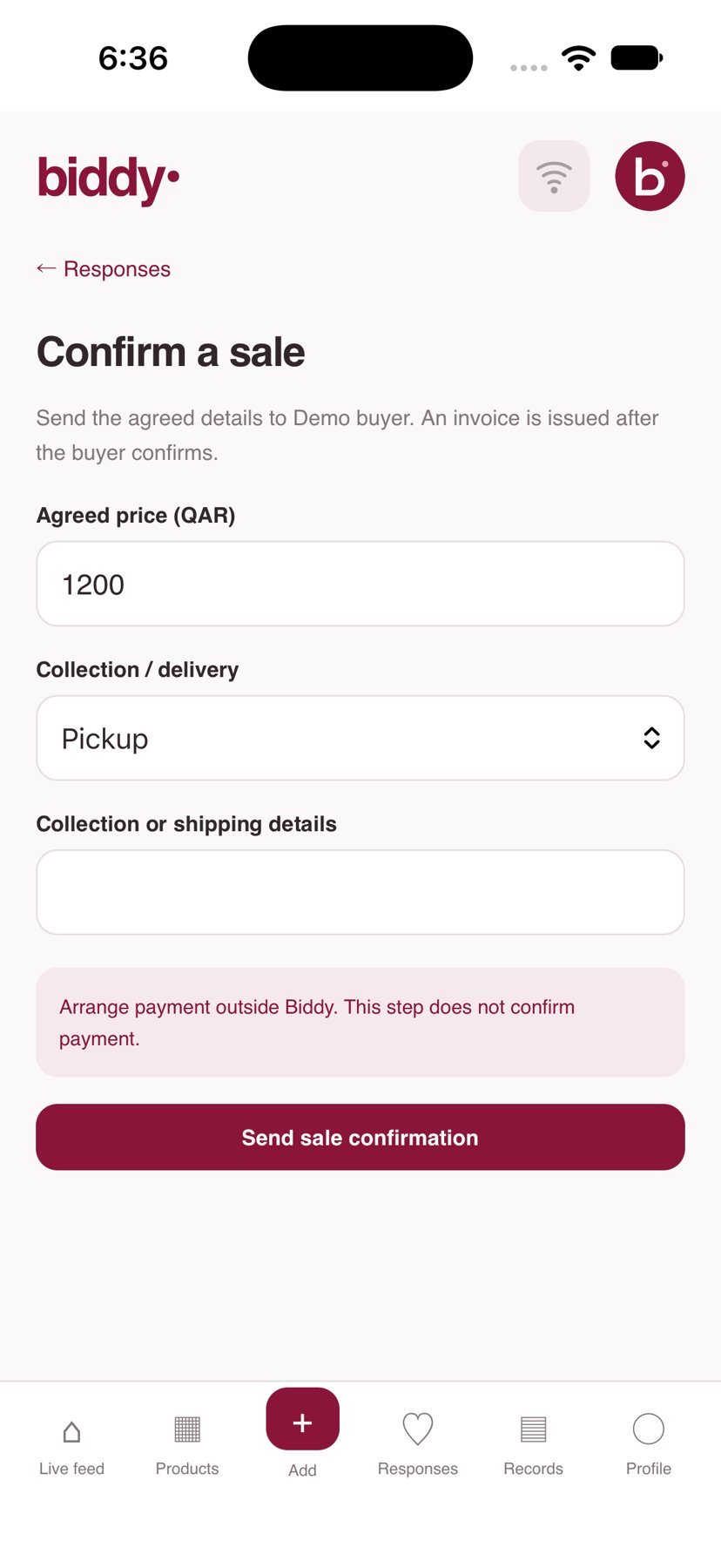
Open My Sales to see interested buyers. Agree on details through WhatsApp, then confirm the sale for the correct buyer. Check the product, amount and delivery method first. Use the existing record for the same sale instead of creating another confirmation.
8. Records, invoices and receipts
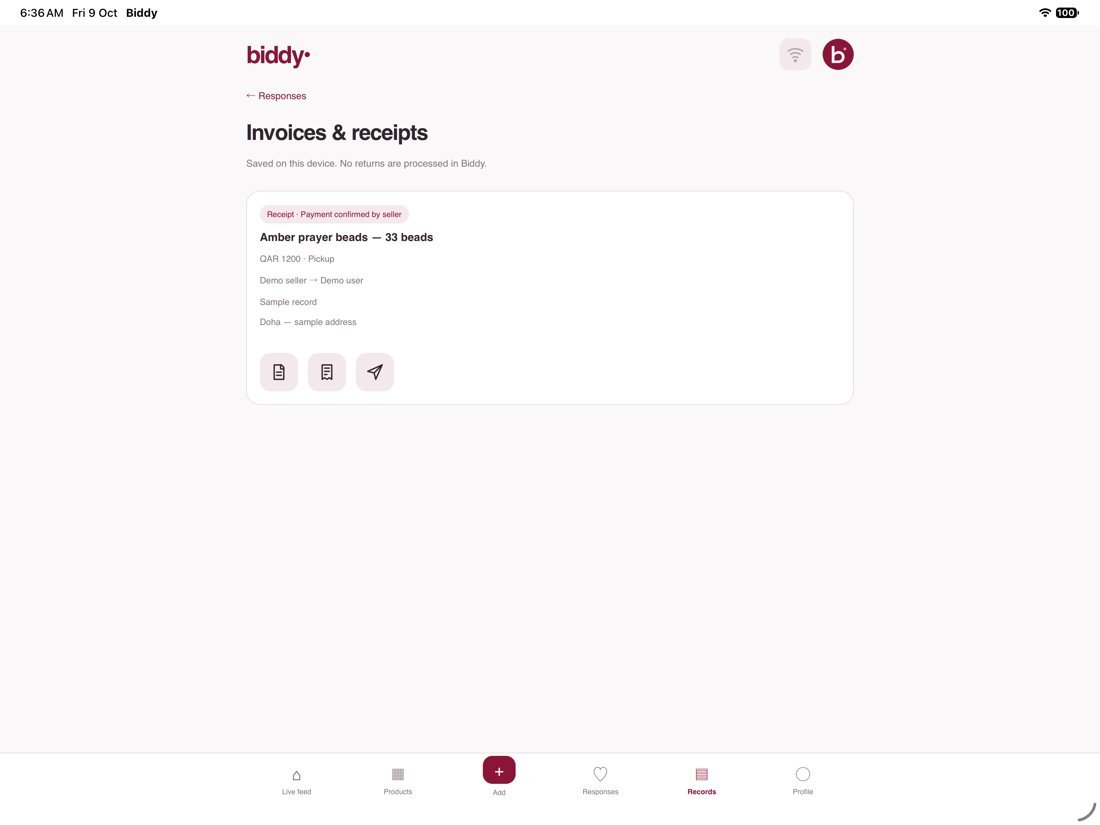
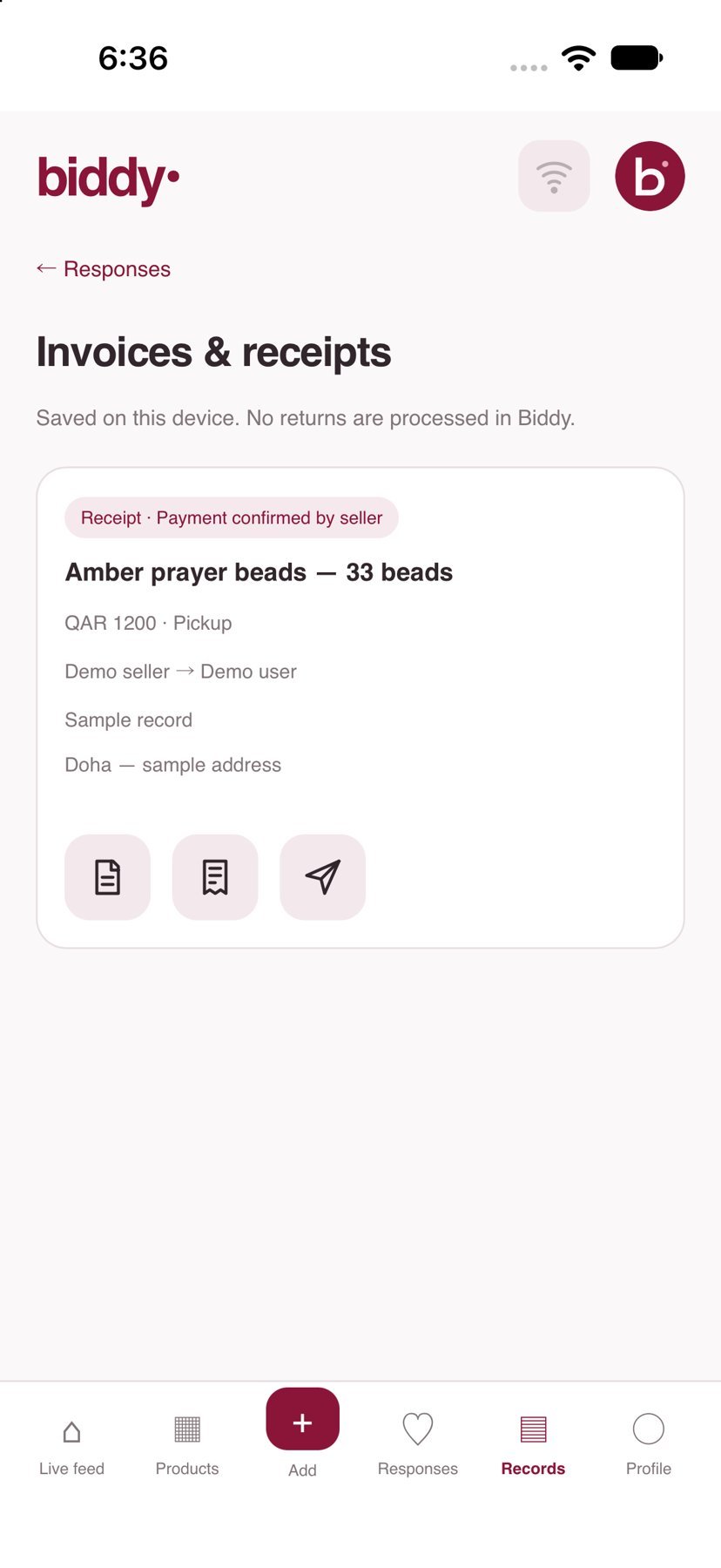
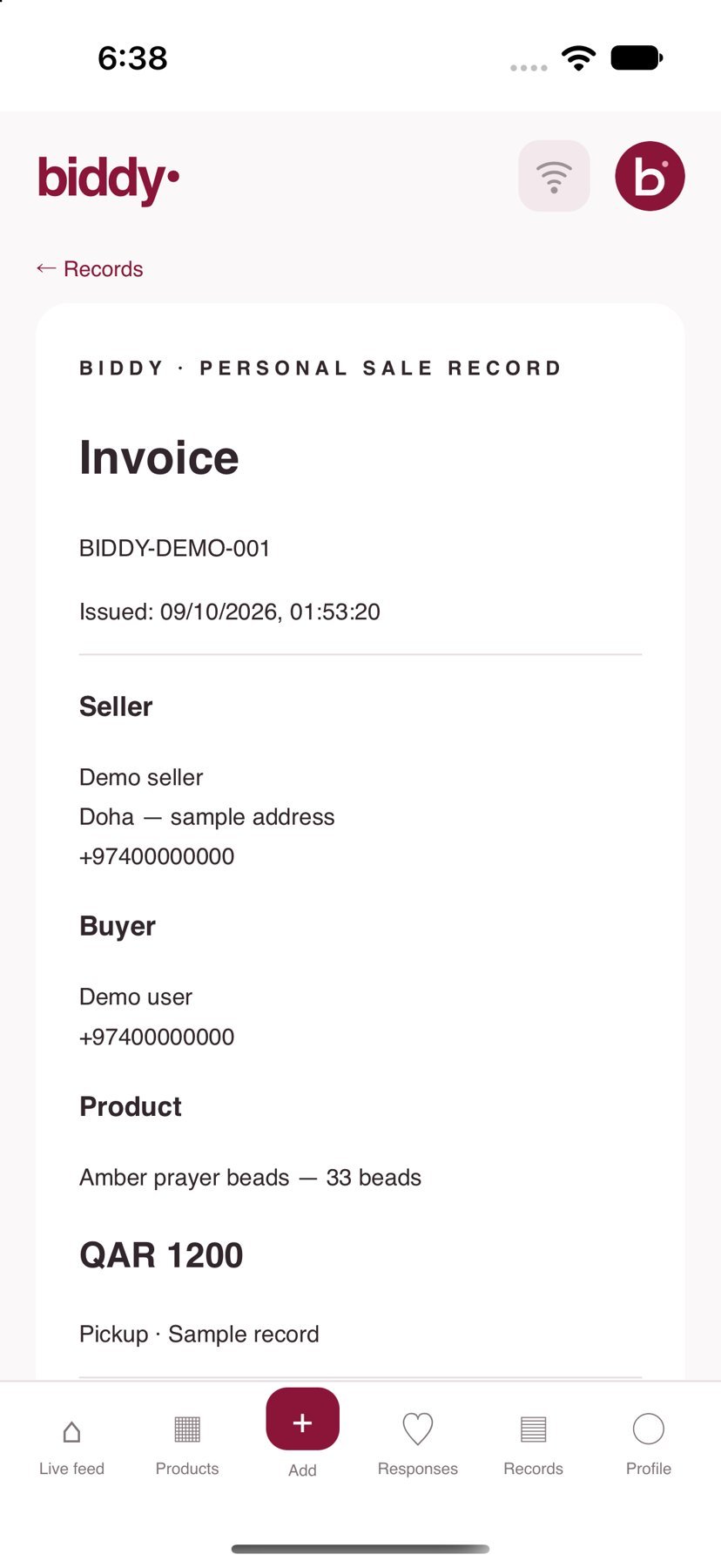
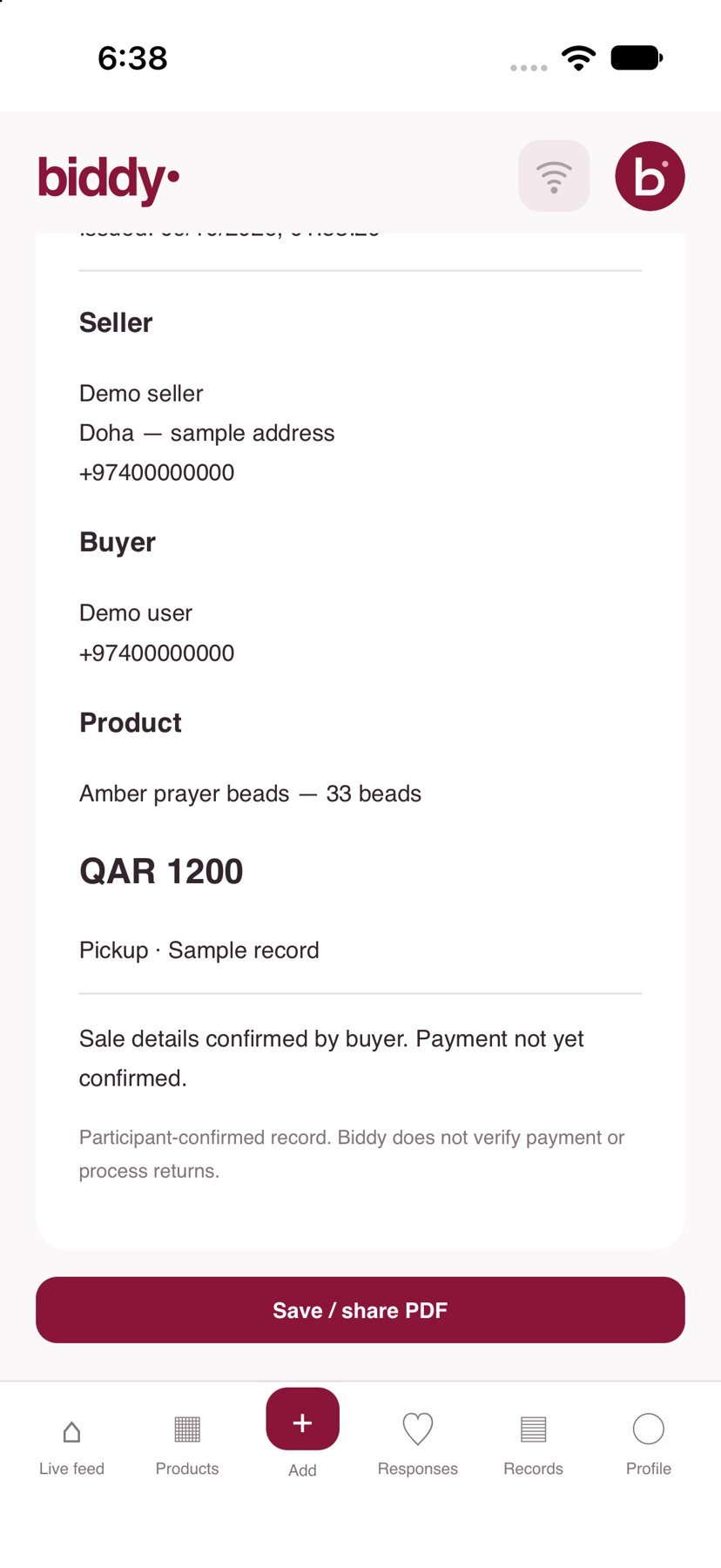
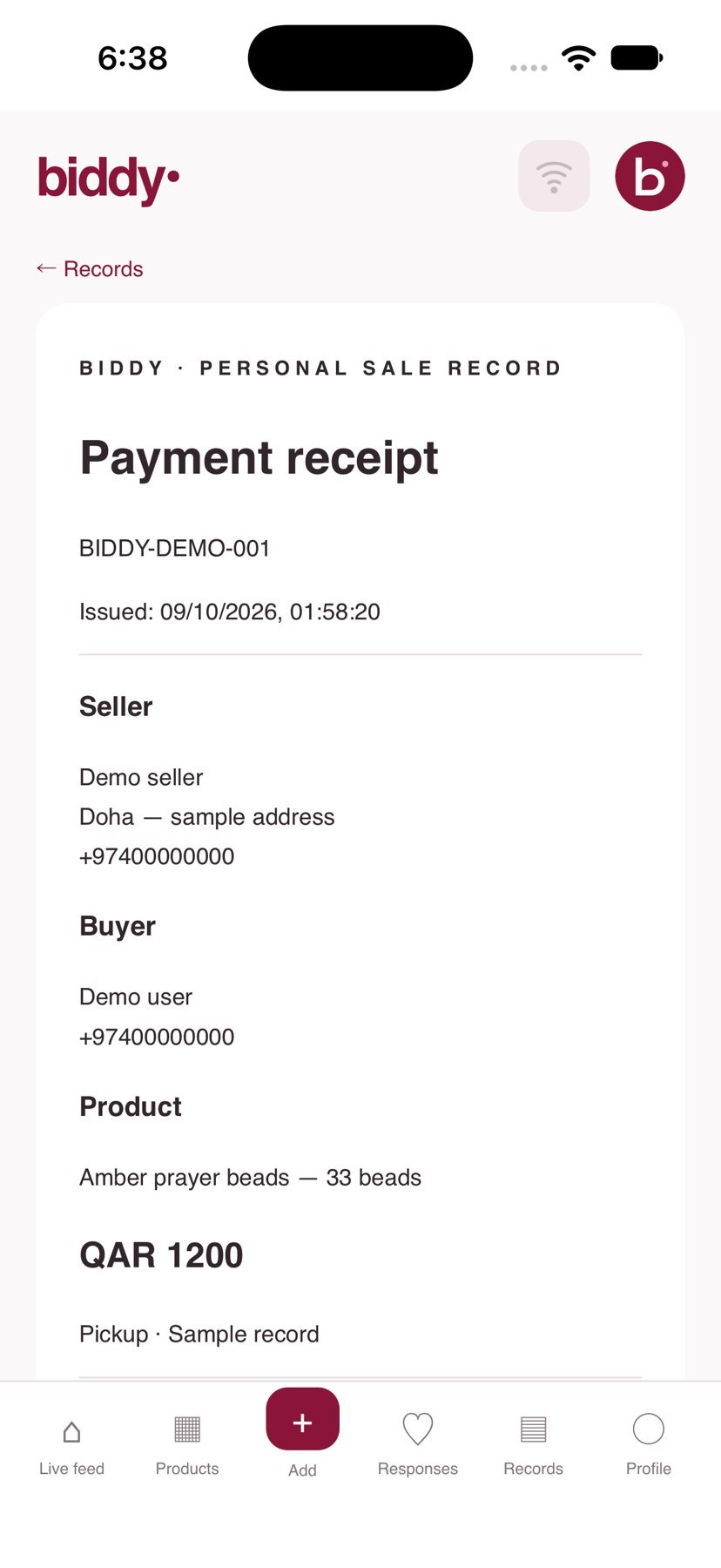
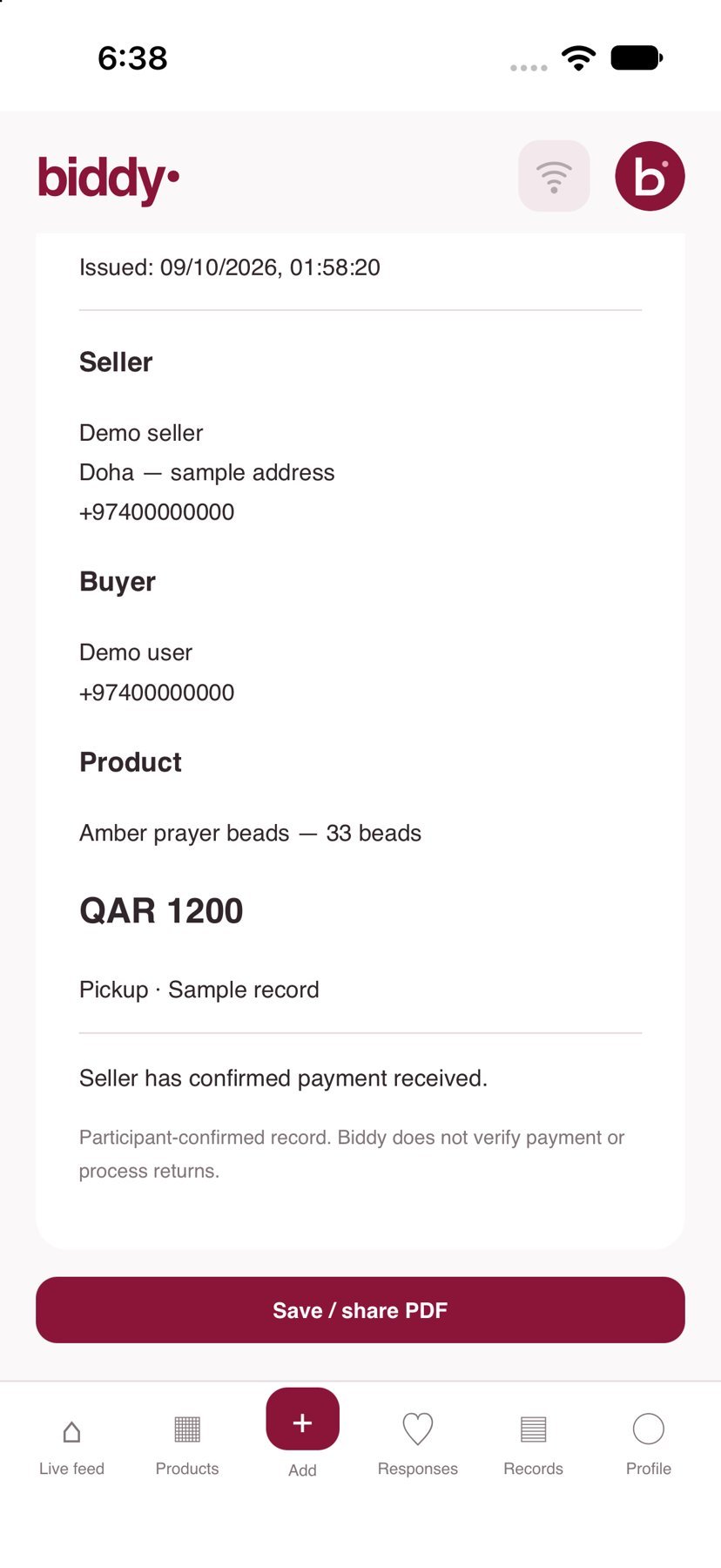
Open Records to view the invoice and receipt for an agreement. The invoice records transaction details; the receipt reflects the seller’s confirmation of receiving payment. These are participant-created records. Biddy does not verify payment or process product payments or returns. Use the record’s document-view and sharing controls.
9. Address, collection and shipping
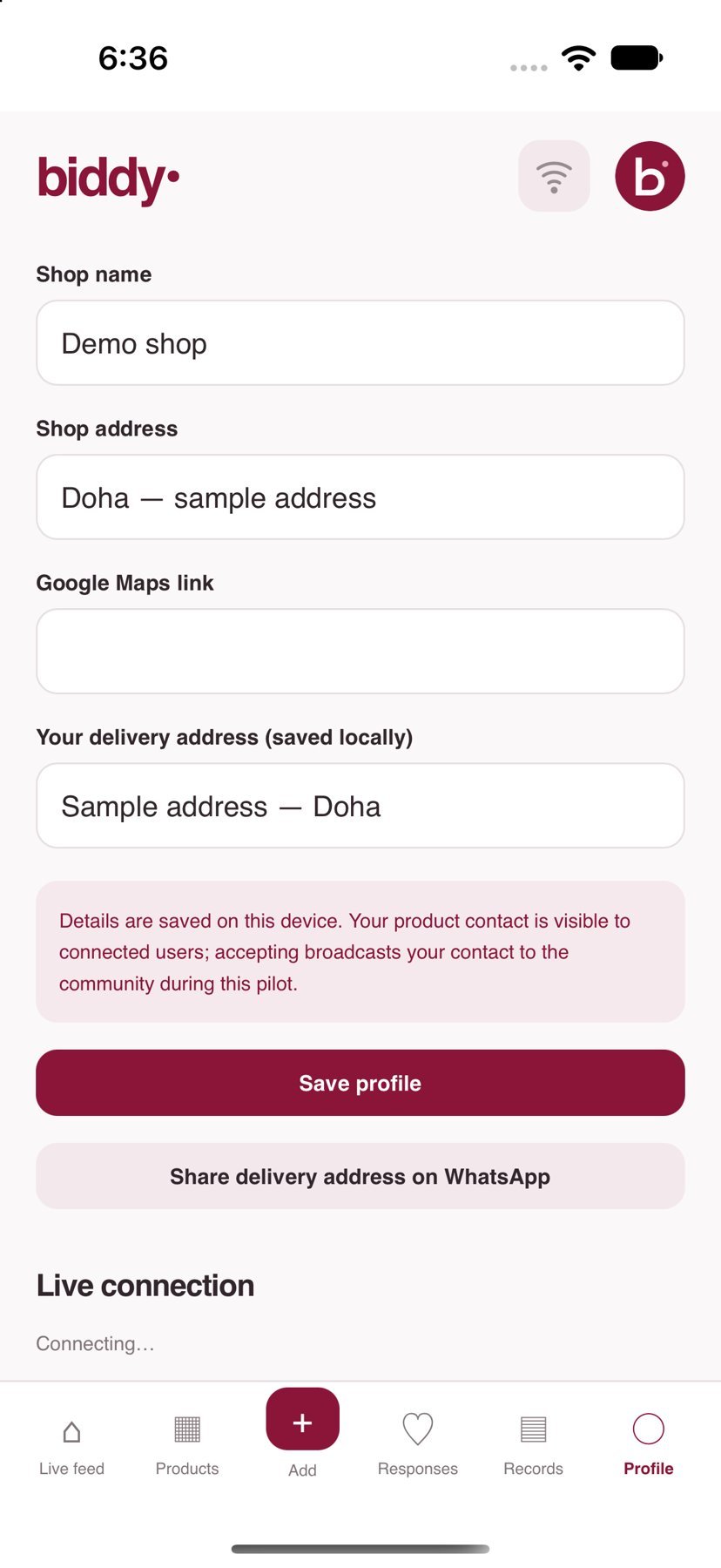
In Profile, add contact information and your address. Sellers can share a shop address and Google Maps link for in-person visits, payment and collection. Shipping can be arranged directly; buyers can share their delivery address through WhatsApp. Share a home address only with the intended recipient.
10. Language and appearance
Choose Arabic or English in Profile. Select Light, Dark or System appearance; System follows device settings. Changing the interface language does not automatically translate text entered by sellers.
11. Backup using iCloud Drive
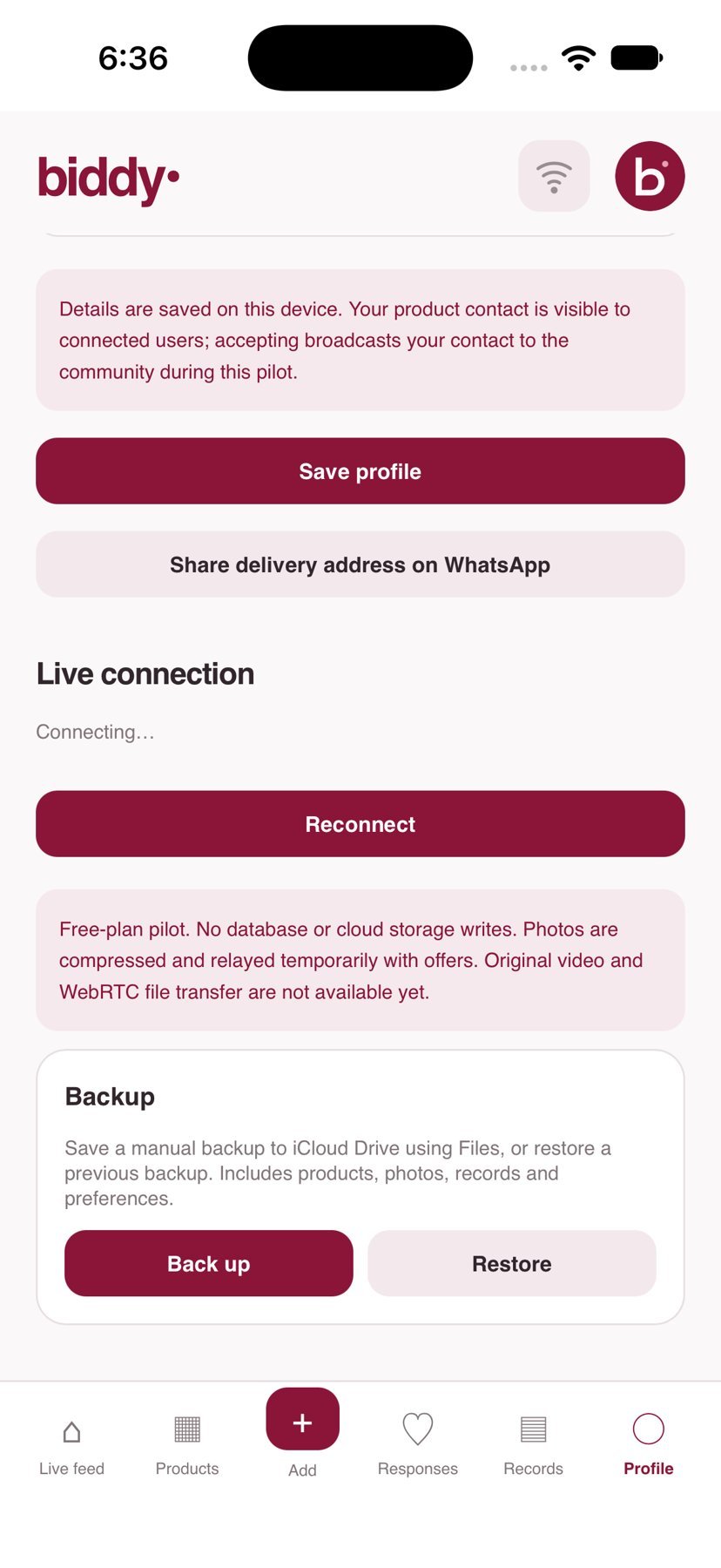
In Profile, export a backup, then choose iCloud Drive in Files. To restore, select a Biddy backup and review the replacement warning before confirming. Backups contain local data such as products, photos, records and preferences, not Apple sessions or subscription entitlements. This is manual backup, not automatic cross-device synchronization.
12. Seller membership and renewal
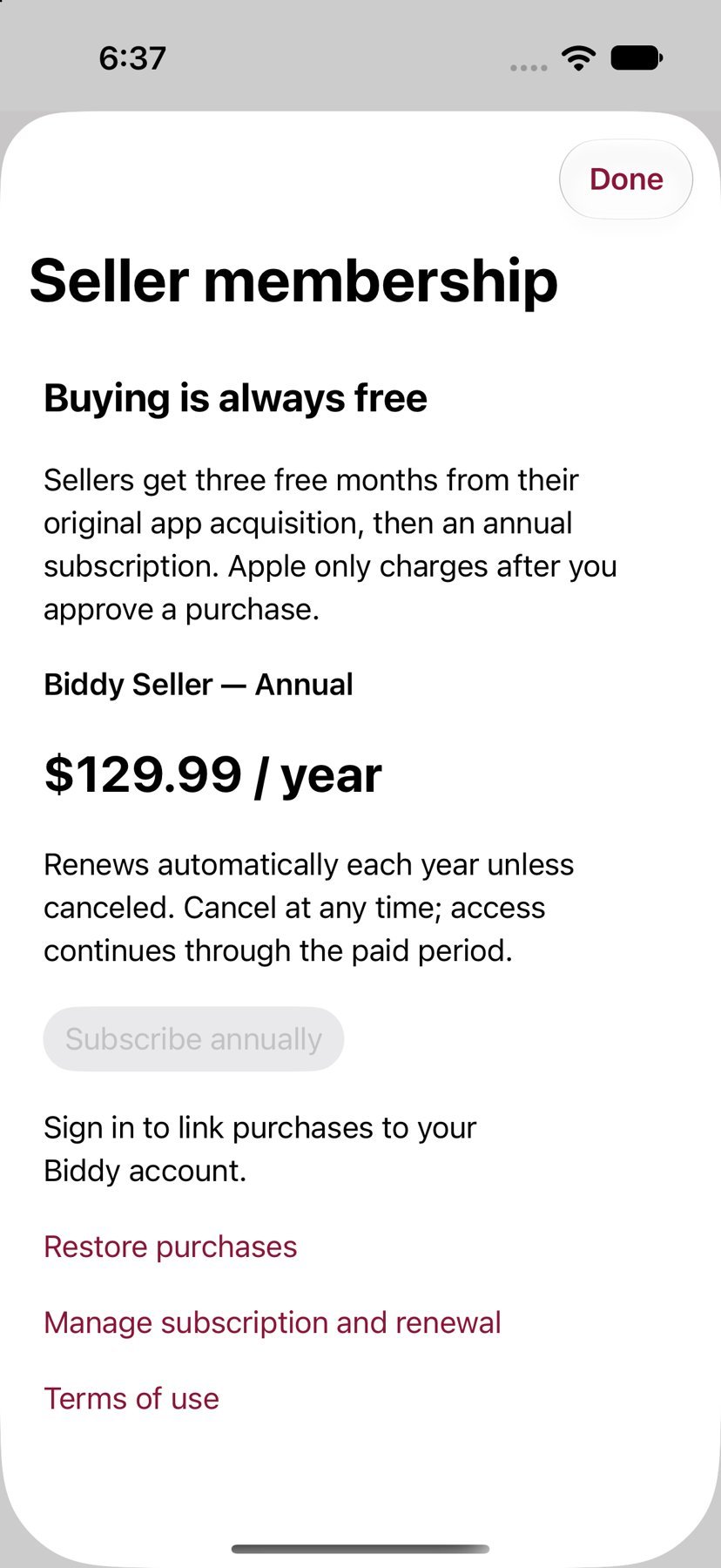
Buying is free. Seller policy: three free months from original app acquisition, then an annual subscription with a Qatar target price of QAR 500. Check Apple’s displayed price before approving. Use Restore Purchases when needed and Manage Subscription to cancel renewal. Cancellation stops renewal while access continues through the paid period. Final subscription integration is being completed before launch.
13. Biddy on iPhone and iPad
The interface adapts to screen space. These examples show Offers, Details, Add and Records on iPad. For help, open Support and send your device model, OS version and steps that caused the problem, without passwords.